
How to Build a Directory With the Listable WordPress Theme
Listable is a WordPress directory theme from Pixelgrade. It turns a WordPress site into a listings directory: places, events, services or anything else you want people to browse, filter and submit.
It has been around for years, it looks good out of the box, and Pixelgrade's own page shows a 4.48 out of 5 rating from 553 reviews. It also carries a few maintenance questions you should answer before you build on it. This guide covers how it works, how to set it up, and the questions to ask first.
One thing to clear up before we start. Listable is not GetListable. GetListable is a separate hosted directory builder with no WordPress involved, and it's reviewed here. This guide is about the WordPress theme.
How Listable actually works
Listable is a theme, not a directory plugin, and that distinction explains most of its strengths and its limits.
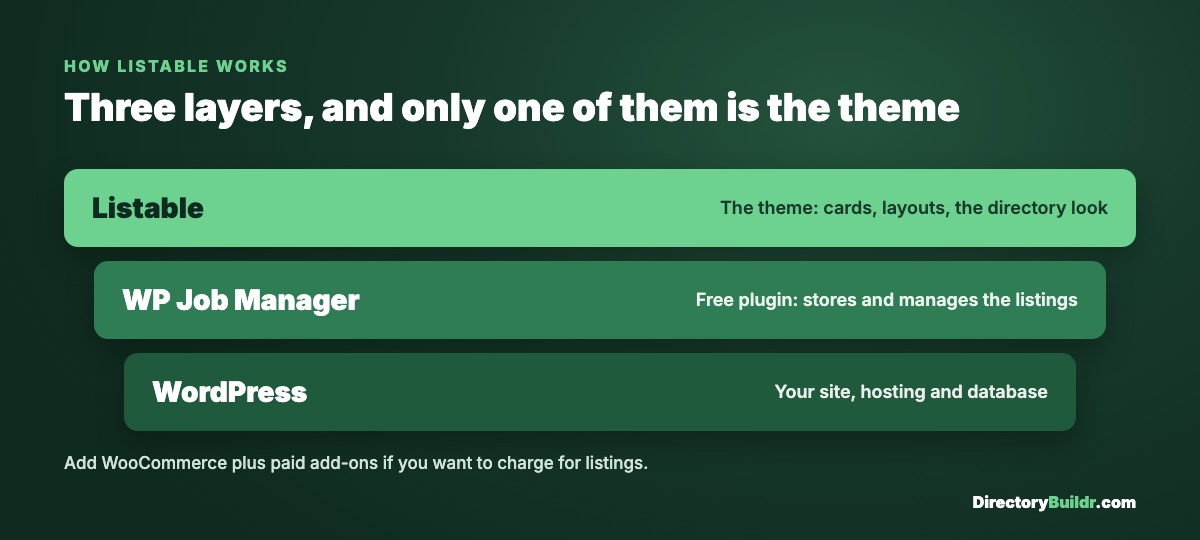
The directory engine underneath it is WP Job Manager, a free WordPress plugin originally built for job boards. It has over 70,000 active installs on WordPress.org. Listable takes WP Job Manager's listings and reshapes them into a directory: listing cards, search and filters, single listing pages and a front-end submission form.
So three things work together:
- WordPress, your site.
- WP Job Manager (free), which stores and manages the listings.
- Listable, which controls how those listings look and adds the directory layout.
If you want to charge for listings, you add WooCommerce (free) plus paid add-ons that connect it to WP Job Manager.
This matters for one reason. When something about listings misbehaves, it's often WP Job Manager rather than the theme. Pixelgrade has said exactly that in reply to a reviewer: the listings archive page is created and handled by WP Job Manager, not by Listable.
What you get
From Pixelgrade's own feature list:
- Listing cards for a place, an event, an activity or a service.
- Filtering on the listings page.
- Monetization, such as charging for submissions or taking a fee on reservations (through WooCommerce and add-ons).
- Drag-and-drop widget layouts for the front page and single listings, without a page builder.
- Style presets with live font and colour changes.
- WPML compatibility, if you need the directory in more than one language.
It doesn't depend on Elementor or Divi, but it runs alongside them if you already use one.
How to set it up
Pixelgrade's handbook walks through each of these. This is the order to do them in.
1. Get hosting and install WordPress. Any decent WordPress host works. Don't use the cheapest shared hosting for a directory, because search and filter pages query the database far harder than a blog does.
2. Install and activate Listable. Buy it from Pixelgrade, upload the theme zip under Appearance → Themes → Add New, and activate it.
3. Install the plugins it asks for. At minimum that's WP Job Manager. Add WooCommerce only if you plan to charge.
4. Import the demo content. Do this on a fresh site, before adding your own content. It gives you the demo's pages, widgets and sample listings, so you can see how everything connects before you change it. Then delete the sample listings.
5. Set up a child theme. If you'll change any code or CSS, put it in a child theme so a theme update doesn't wipe it out. Pixelgrade's docs cover this.
6. Set up your categories. Decide them before you add listings. Categories are hard to reorganize once you have hundreds of listings.
7. Configure the "Add a Listing" and "Single Listing" pages. These are the two pages that matter most: one is how businesses submit, the other is what visitors (and Google) actually see.
8. Add your first 20 listings by hand. Check how they look, then decide whether to import the rest. If you're filling the directory from Google Maps or another source, this guide covers scraping and cleaning the data.
What it costs
Pixelgrade sells Listable directly. Its ThemeForest listing is no longer available, so ignore any old ThemeForest prices you find. Pixelgrade's licences are a one-time payment per site with a 30-day money-back guarantee, and its themes are GPL licensed. Check the current price on Pixelgrade's Listable page before you buy.
Budget for more than the theme, though. Several reviewers point out that matching the demo's paid features (paid listings, claim listing, bookmarks) means buying WP Job Manager add-ons, and that those can cost as much as the theme. Add hosting, and possibly a maps API key.
Questions to ask before you build on it
Every directory theme is a long-term commitment, because moving hundreds of listings later is painful. So check these first.
Is it still being actively updated? Look at the theme's last update date and changelog on Pixelgrade's site. Some signals are worth knowing about: the ThemeForest listing has been removed, the newest article in Listable's handbook dates from February 2021, and a WP Job Manager update (1.32.0) once broke Listable's CSS until the theme itself was updated. A user in that support thread said Listable hadn't been updated in a while. Pixelgrade replied that an update was coming. None of that means the theme is abandoned, but it's worth confirming before you commit years of work to it.
How does it handle SEO? One reviewer complained that the listings page loads its results with AJAX. That isn't fatal, because Google renders JavaScript. Still, make sure your individual listing pages and category pages are proper crawlable URLs with their own titles. Those pages do the ranking, not the filter results.
What happens when WP Job Manager updates? Because the theme depends on it, a WP Job Manager update can affect Listable's layout. Test plugin updates on a staging copy before running them on the live site.
Can you live with the customization limits? A common complaint in reviews is limited front-end customization without coding. If you want full control of every template, a builder-based setup gives you more.
Who Listable suits
A good fit if:
- You want a good-looking directory quickly and you're comfortable in WordPress.
- Your listings are places, events or services that suit a card-and-map layout.
- You're fine using WP Job Manager's plugin ecosystem for extra features.
Look elsewhere if:
- You want a theme with frequent, visible updates and a large current ecosystem.
- You want deep control over every template without code.
- You'd rather not maintain WordPress at all.
Alternatives worth comparing
If you're choosing a WordPress directory theme, compare these before you buy:
- MyListing: design-focused, with a flexible listing-type builder on Elementor.
- Listeo: a popular all-round directory theme with booking features.
- Voxel: newer and more technical, from the makers of MyListing.
- ListingPro: an all-in-one theme with its own listing system.
- Directorist or GeoDirectory: directory plugins that work with any lightweight theme, so your design and your data aren't tied together.
That last point is worth weighing. With a directory plugin, you can change themes later without losing your listings. With a directory theme, the two are tied. This is the same lesson as what happened to Wilcity, a directory theme whose buyers were left stranded.
Not set on WordPress at all? WordPress vs no-code for directories and the two questions that decide which directory tool you need cover that choice. Every WordPress option is in the WordPress directory plugins and themes category.
If you'd rather have the directory built for you, get in touch.