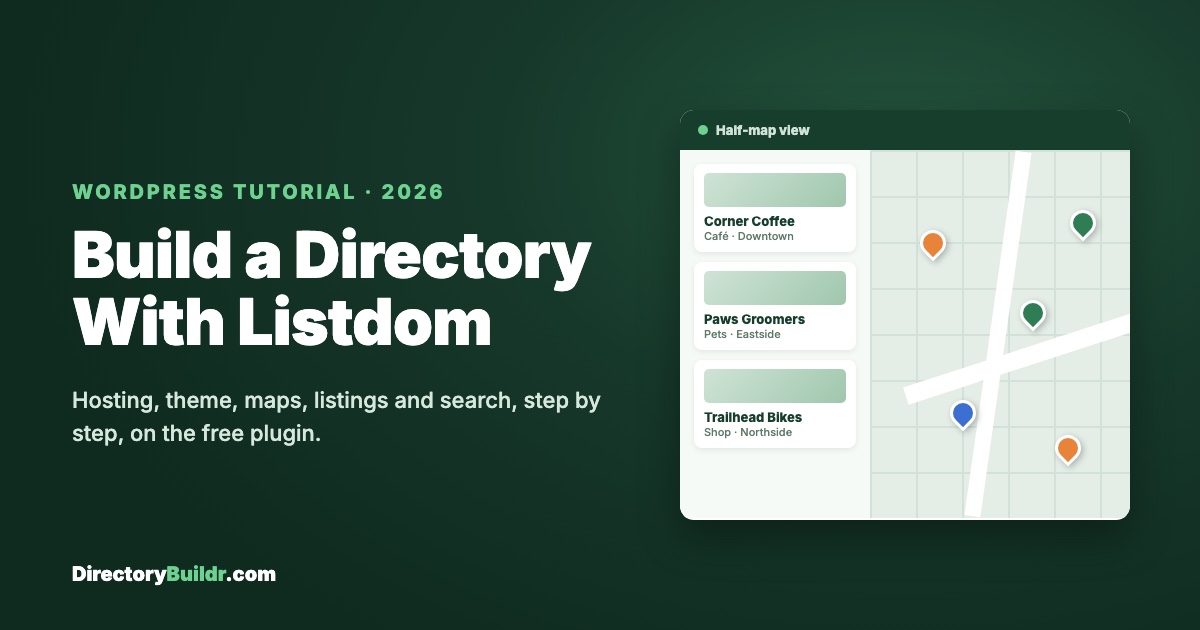
Say you want to build a directory for something Google Maps does badly. Japanese jazz vinyl in the Pacific Northwest, say, or coffee shops that don't charge extra for oat milk. Google's results for that are a generic mess. A focused directory isn't.
This tutorial builds one on WordPress with Listdom, a free directory plugin, without writing code. Everything here works on the free version except taking payments, which I'll flag when we get there.
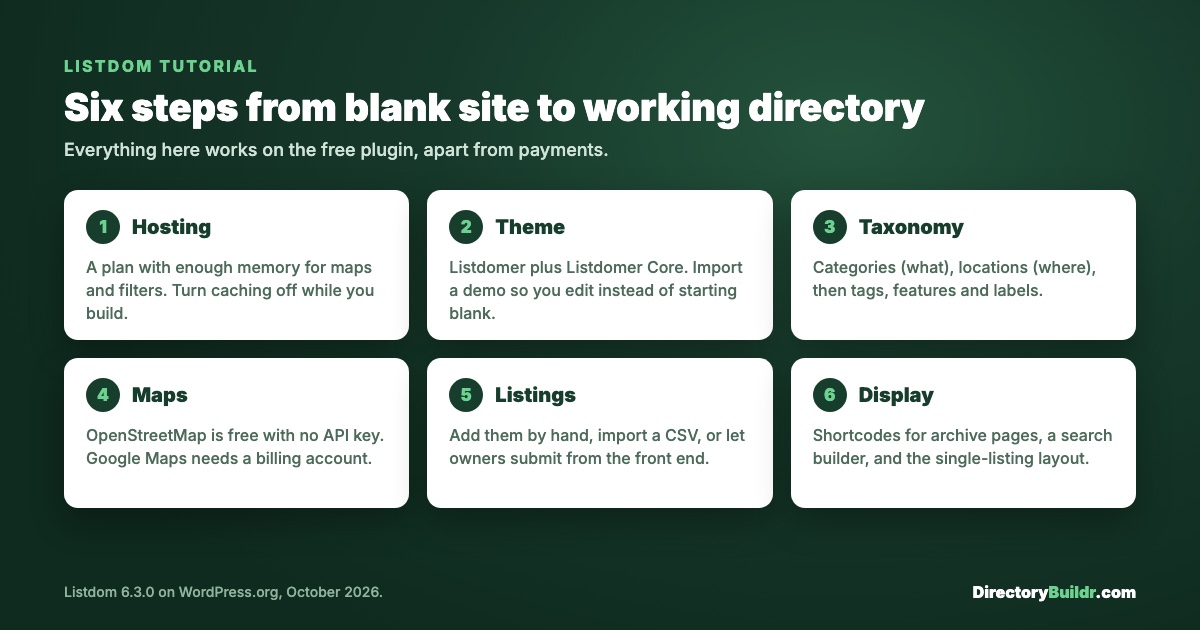
Step 1: Hosting (don't skip this)
Directories are heavier than blogs. They carry hundreds of images, map queries and search filters that run on every visit, so the cheapest shared plan won't cope for long. I use Hostinger, on a plan with enough memory for that load (their Business plan or above).
One rule before you start building: once WordPress is installed, turn off the caching plugin (on Hostinger that's LiteSpeed Cache).
Caching saves a snapshot of each page so visitors load it faster. That's what you want after launch. While you're building, it means you keep seeing an old version of the page you just changed. Turn it off now and back on when you launch.
Step 2: The theme
A normal blog theme doesn't know what a map container or a filter panel is. Listdom works with any theme through shortcodes, but its companion theme, Listdomer, is built around Listdom's layouts and saves you most of the design work.
- Go to Appearance → Themes → Add New and install Listdomer.
- Install its companion plugin, Listdomer Core. It handles the demo import.
- Import a demo. The importer offers several, including General Directory, Business Directory, Real Estate, Travel and Service. It installs what that demo needs, such as Listdom and Elementor.
The demo is the point of this step. Instead of a blank page, you get a site full of placeholder listings, images and a map. Editing a fake site is much easier than building a real one from nothing. Some demos rely on Listdom's paid toolkits, so if one asks for a licence, pick another or come back to it later.
Step 3: Organize before you add anything
Before you add a single real listing, decide how your directory is organized. Listdom gives you five ways to group listings, and each does a different job.
Categories are what a place is: restaurant, hotel, dog groomer. Each category gets a colour and an icon, and the colour becomes the map pin. Make restaurants orange and every restaurant on the map is orange, so people can scan a city at a glance. The icon set won't have everything. If there's no dog-grooming icon, scissors will do.
Locations are where a place is. Listdom keeps them separate from categories, so visitors can combine the two: pizza in Brooklyn. Give your main locations a header image, because it becomes the banner on that location's page.
Then three smaller ones:
- Tags are search keywords, like "cheap" or "romantic".
- Features are yes/no amenities, like Wi-Fi or parking. They show as icons on the listing.
- Labels are badges like "Featured" or "VIP" that sit on the listing image. Later you can charge businesses for one.
If you're unsure how to split your niche, how to structure directory categories and tags covers it in more depth.
Step 4: Maps
This is the part that trips people up, and the free version handles it better than most plugins.
OpenStreetMap (free, no account). Listdom's free version supports OpenStreetMap through Leaflet. There's no API key, no billing account and no Google tracking. Start here. If you want nicer map styling later, you can add a Mapbox key for Mapbox tiles.
Google Maps (free up to a limit, but needs a billing account). Google Maps looks familiar to visitors, but you need an API key from Google Cloud, which means adding a credit card. Google stopped the old $200 monthly credit in March 2025. It now gives a free number of uses per month for each map service (10,000 for most of the basic ones), which a new directory is unlikely to go past.
You can also use both: Google Maps on single listing pages and OpenStreetMap everywhere else, which keeps your Google usage low.
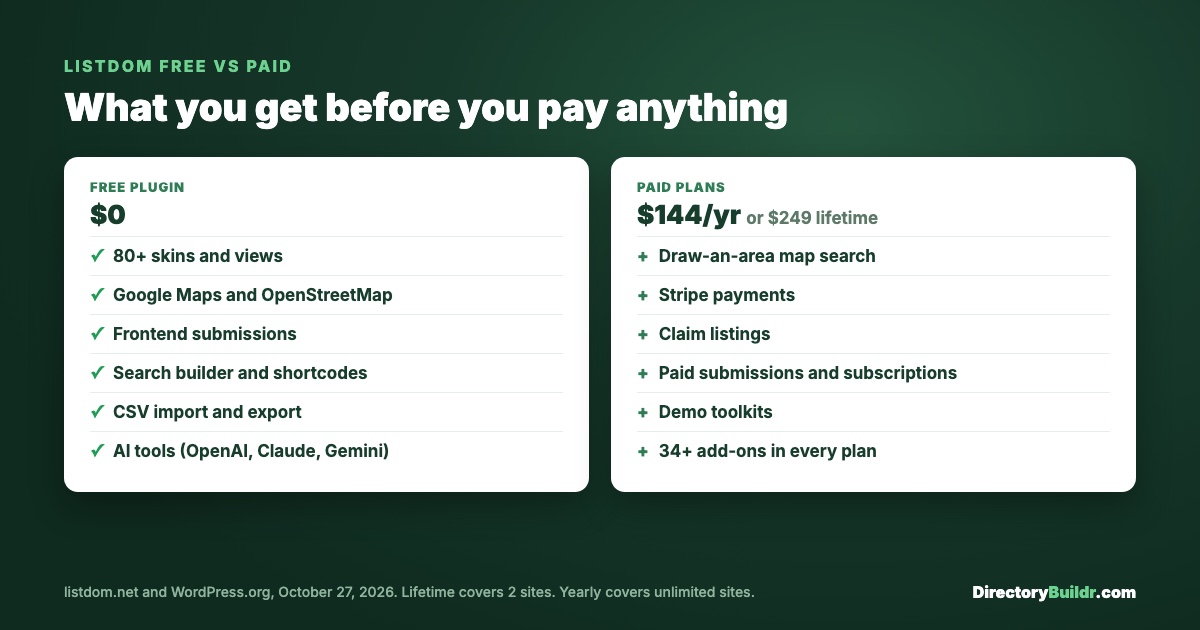
The one map feature that needs a paid plan is draw search, where a visitor draws an area on the map and sees only the listings inside it.
Step 5: Add your listings
You've got three ways to fill the directory, and most directories use all three.
By hand. It's like writing a blog post, with extra fields for opening hours, price range and so on. If the address lookup drops the pin in the wrong spot, drag the pin to the right corner of the street. That matters for food trucks and trailheads, which don't have a street address.
By CSV import. The free version imports and exports CSV files and maps the columns for you. If you've collected or scraped your data into a spreadsheet, this is how you load hundreds of listings at once. How to get directory data covers where that data comes from, and your first 50 listings covers which ones to add first.
By submission. The free version includes a frontend dashboard where business owners submit and manage their own listings without ever seeing the WordPress admin. Submissions land in a queue so you can check them for spam before they go live.
Charging for submissions needs a paid plan. Stripe payments, paid submissions, subscriptions and claim listings are all paid add-ons.
Step 6: Design and display
Now make it look like a finished site.
Archive pages. This is how you show something like "All Italian restaurants". Open Listdom's shortcode generator, pick a view (grid, list, masonry, half-map and others, from more than 80 skins), set the category and the number of columns, and copy the shortcode it gives you. Paste it into Elementor, Gutenberg or Divi and the page renders.
The single listing page. You can switch each section of a listing page (gallery, map, video, contact details) on or off. With the Style 1 layout you can also change their order. If your video is buried under the comments, move it up.
The search bar. Don't leave it on the default. Use the search builder to show only the filters people actually use, and put the rest (gluten-free, parking and so on) behind a "More options" toggle.
What it costs
You can build and launch everything above for the price of hosting and a domain. The free plugin includes the layouts, both map options, frontend submissions, search and CSV import.
You need a paid plan when you want to earn from the directory: payments, claims, paid listings or draw search. When I checked in October 2026, plans started at $144 a year for unlimited sites, or $249 once for a lifetime licence on two sites. The Listdom listing has the full price table.
Final thought
None of this needs a developer anymore. A working directory is a weekend's work. The hard part is choosing the niche: what does your town or your hobby need that Google isn't showing? How to pick a directory niche using search data is a good place to start.
See the Listdom review and pricing
The Hostinger link above is an affiliate link. If you buy through it, I may earn a commission at no extra cost to you. Details here.

Written by
Andrew Murray
I build niche directories and write up what actually works. I ended up writing a guide by accident - because I was clarifying my own process. So I started giving it away for free. And people seem to find it helpful. Grab the guide here.
Visit website